

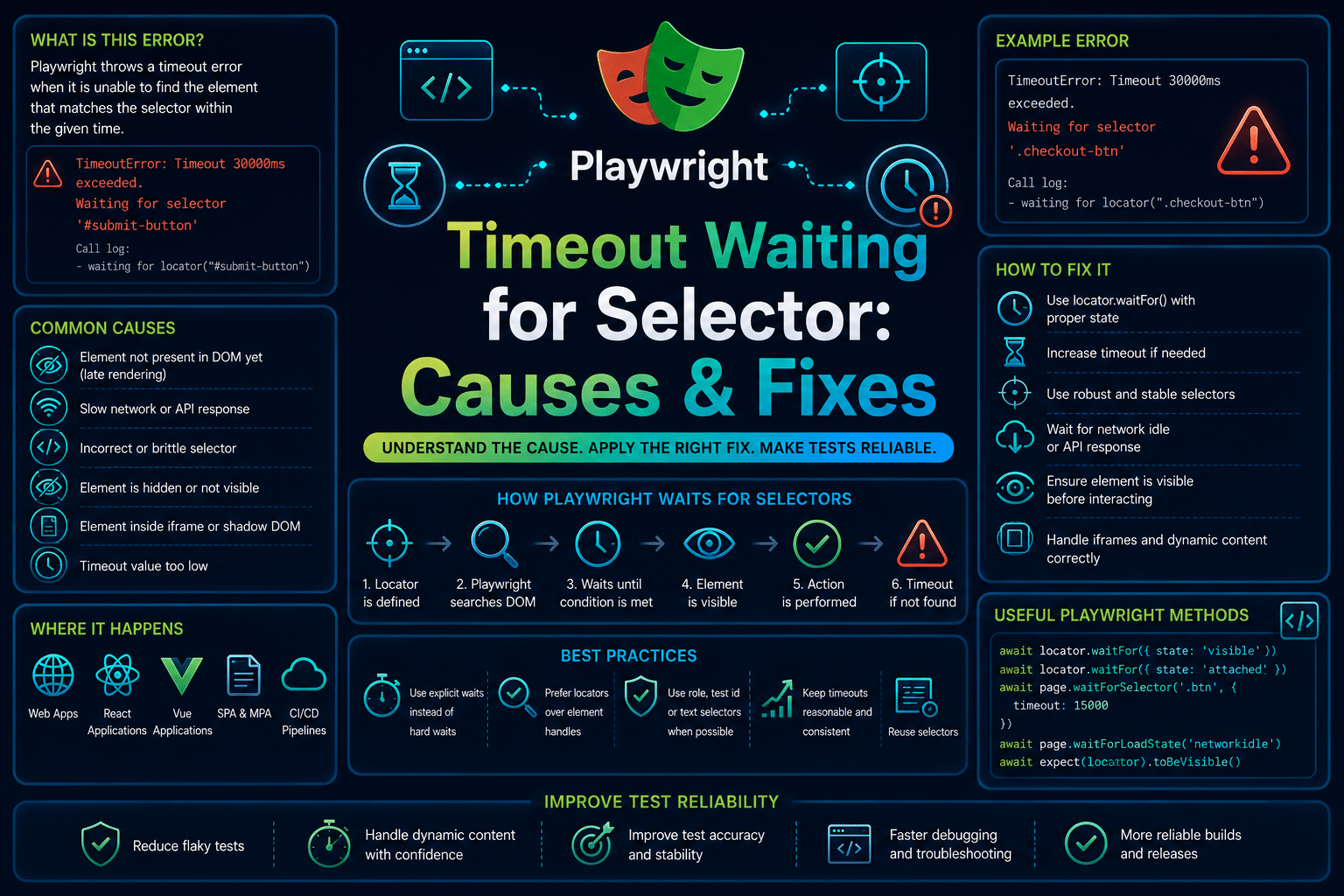

Playwright Timeout waiting for selector is a runtime synchronization failure.
If you are seeing it while waiting for an element to appear before interacting with it, this guide covers the Playwright version of the error, not similar timeout errors from Selenium or Puppeteer.
The error indicates that Playwright could not find an element matching the specified selector within the configured timeout.
In most cases, the problem lies in page synchronization, selector accuracy, dynamic rendering, or application state rather than Playwright itself.
What is the Playwright Timeout Waiting for Selector Error?
A Timeout waiting for selector error occurs when page.waitForSelector() or an action that implicitly waits for an element cannot locate a matching element before the timeout expires.
Playwright continuously polls the page until either the selector matches or the timeout limit is reached.
The error is thrown during test execution, usually before an interaction such as clicking, typing, or validating content.
It is one of the most common synchronization failures in Playwright because modern web applications frequently render content asynchronously after API requests or state updates.
This error differs from exceptions such as Timeout exceeded during page navigation or Element is not attached to the DOM.
A selector timeout means the expected element never reached the required state within the allotted time.
Whereas, a detached element errors indicate that the element existed but changed or disappeared before Playwright completed the interaction.
What Causes The Playwright Timeout Waiting for Selector Error?
Playwright throws a Timeout waiting for selector when it cannot find an element before the configured timeout expires.
Although the error appears simple, it can originate from several different layers, including the test itself, the application’s rendering behavior, or differences between execution environments.
Identifying the root cause is the fastest way to resolve the failure. The following are the most common reasons Playwright is unable to locate a selector within the expected time.
- Incorrect or outdated selector: Frontend changes, renamed attributes, dynamically generated IDs, or modifications to the page structure can prevent Playwright from locating the expected element even though the application itself is functioning correctly.
- Asynchronous rendering: Frameworks such as React, Angular, and Vue often render elements only after API requests complete or client-side state updates occur. If Playwright begins waiting before rendering finishes, the selector may never appear within the configured timeout.
- Unexpected application state: Failed authentication, redirects, feature flags, permission checks, or conditional rendering can prevent the target element from appearing altogether, causing the wait to eventually time out.
- Lazy-loaded or hidden elements: Some elements are rendered only after scrolling, hovering, expanding a menu, or completing another user interaction. Waiting for these elements too early commonly results in a selector timeout.
- Slower CI execution: Headless browsers, limited CPU resources, and higher network latency in CI environments can delay rendering enough for Playwright to exceed its timeout, even when the same test consistently passes on a local machine.
How To Reproduce The Playwright Timeout Waiting for Selector Error:
The easiest way to reproduce this error is to wait for a selector that never appears on the page.
This can happen because the selector is incorrect, the element is rendered only after a user action, or the application never reaches the expected state.
Once the configured timeout expires, Playwright stops waiting and throws a Timeout waiting for selector exception.
The example below attempts to locate a login button that does not exist on the page.
Since no matching element is ever added to the DOM, page.waitForSelector() continues polling until the timeout limit is reached.
import { test } from '@playwright/test';

test('timeout waiting for selector', async ({ page }) => {
  await page.goto('https://example.com');

  await page.waitForSelector('#login-button', {
    timeout: 3000
  });

  await page.click('#login-button');
});
Playwright reports an error similar to the following:
TimeoutError: page.waitForSelector: Timeout 3000ms exceeded.
waiting for selector "#login-button"

=============== logs ===============
waiting for locator('#login-button') to be visible
=========================================================
In a real-world application, this error is usually caused by an outdated selector, delayed rendering after an API response, or a missing navigation step that prevents the element from appearing.
The error itself does not identify which of these conditions occurred, so the next step is to verify the selector, confirm the page reached the expected state, and determine whether the application rendered the element before the timeout expired.
How To The Playwright Timeout Waiting for Selector Error?
1. Verify That the Selector Is Correct
The first step is confirming that the selector still matches the current version of the application.
Open the page in browser DevTools and verify that the selector uniquely identifies the intended element. UI updates often change IDs, CSS classes, or DOM structure without test code being updated.
Whenever possible, use stable selectors such as data-testid instead of classes or deeply nested CSS selectors. Stable test attributes are less likely to change as the UI evolves and significantly reduce selector-related failures.
await page.waitForSelector('[data-testid="login-button"]');
await page.click('[data-testid="login-button"]');
2. Wait for the Correct Page State
A valid selector will still fail if the application has not finished loading the required content.
Rather than relying on fixed delays, wait for the application to reach a meaningful state before searching for the element. This keeps tests resilient across different execution environments.
Playwright provides several synchronization methods, including waiting for page load states and network activity. Choosing the appropriate synchronization point usually eliminates unnecessary selector timeouts.
await page.goto('https://example.com');

await page.waitForLoadState('networkidle');

await page.waitForSelector('[data-testid="dashboard"]');
3. Use Playwright Locators Instead of waitForSelector()
In many cases, explicit calls to page.waitForSelector() are unnecessary. Playwright’s Locator API automatically waits for elements to become actionable before performing interactions.
This reduces the amount of synchronization code that needs to be maintained.
Replacing explicit waits with Locators also makes tests easier to read and less sensitive to minor rendering delays. This is generally the recommended approach for new Playwright tests.
const loginButton = page.getByRole('button', {
  name: 'Login'
});

await loginButton.click();
4. Handle Dynamic or Conditional UI Properly
Some elements only appear after a previous user action, such as opening a menu, completing authentication, or navigating to another screen.
Waiting for these elements before the prerequisite action guarantees that the selector will eventually time out.
Structure your test around the same interaction flow that a real user follows. This ensures the application reaches the correct state before Playwright searches for the element.
await page.click('[data-testid="menu"]');

await page.waitForSelector('[data-testid="settings"]');

await page.click('[data-testid="settings"]');
5. Increase Timeouts Only When Necessary
Increasing the timeout should be the final troubleshooting step rather than the first.
A larger timeout may accommodate legitimately slow pages, but it can also hide synchronization problems that should be fixed in the test or application.
If longer loading times are expected because of large datasets or slower environments, increase the timeout only for the specific operation instead of globally.
await page.waitForSelector(
  '[data-testid="report"]',
  {
    timeout: 15000
  }
);
How AI Can Help You Fix Playwright Timeout Waiting for Selector Error Faster
The traditional debugging loop usually involves rerunning the test several times, reviewing Playwright traces, inspecting screenshots, validating selectors in DevTools, checking browser logs, and comparing successful and failed executions.
Much of the engineering effort goes into determining whether the failure originated from the selector, the application state, or rendering delays.
An AI-assisted testing workflow can analyze selectors, interaction order, expected page state, and synchronization logic before execution.
Instead of waiting for the test to fail, it can identify selectors that depend on unstable attributes, missing navigation steps, or conditional rendering patterns.
Playwright tells you that the selector could not be found before the timeout expired during runtime.
A code review layer can identify fragile selectors, missing synchronization points, and incorrect interaction sequences before the test executes.
While Playwright surfaces the failure at runtime, Panto AI’s mobile QA and code review layer can flag unstable selector patterns and synchronization issues earlier in the workflow and directly in the pull request.
The value is not in replacing Playwright. The value is in catching selector stability and synchronization defects before they become flaky tests, repeated CI failures, and lengthy debugging sessions.
Best Practices To Prevent The Playwright Timeout Waiting for Selector Error
1. Use Stable Selectors.
Build tests around dedicated attributes such as data-testid instead of generated CSS classes or deeply nested selectors. Stable selectors are far less likely to break as the application’s UI evolves.
2. Synchronize With Application State.
Wait for meaningful application events instead of using arbitrary delays. Aligning interactions with the application’s actual state greatly reduces selector timeout failures.
3. Prefer Locator APIs.
Use Playwright Locators for interactions whenever possible. Their built-in waiting behavior removes much of the manual synchronization logic that commonly introduces flaky tests.
4. Keep UI Rendering Predictable.
Minimize inconsistent rendering patterns, excessive animations, and unpredictable loading behavior wherever possible. Predictable rendering produces more consistent automation results across different environments.
5. Run Tests in Both Headed and Headless Modes.
Headless execution often exposes synchronization issues that are hidden during local development. Regularly validating both modes helps identify timing problems before they reach CI.
Handling Playwright Timeout Waiting for Selector In CI/CD Pipelines
Selector timeout failures are typically more common in CI environments than on local developer machines.
Shared runners often have fewer CPU resources, slower rendering, and higher network latency, making race conditions easier to expose.
Headless browser execution can also behave slightly differently from headed execution, especially when rendering is delayed.
Before starting Playwright tests, verify that the application is fully available instead of assuming it has finished starting.
until curl --silent --fail http://localhost:3000 > /dev/null
do
  echo "Waiting for application..."
  sleep 2
done

echo "Application is ready."
Combining readiness checks with stable selectors and proper synchronization significantly reduces intermittent selector timeout failures in automated pipelines.
Conclusion
Playwright Timeout waiting for selector is a synchronization failure that indicates the expected element never became available before the configured timeout expired.
The error usually points to selector accuracy, application state, or rendering timing rather than a problem with Playwright itself.
The fastest debugging sequence is to verify the selector, confirm that the application reached the expected state, replace explicit waits with Locators where appropriate, and only increase timeouts after eliminating synchronization issues.
For teams maintaining large automation suites, the goal is not simply fixing individual timeout failures.
It is identifying and removing unstable selectors and synchronization patterns before they repeatedly create flaky tests across the entire pipeline.
Panto QA helps teams detect unstable selectors, synchronization issues, and flaky test patterns before they fail at runtime.
Spend less time debugging Playwright tests and more time delivering reliable releases.
FAQs
Q: Why does Playwright timeout waiting for a selector in CI but not locally?
A: CI environments typically run on slower hardware with fewer resources and headless browsers, making rendering and network operations less predictable. These conditions often expose synchronization issues, race conditions, or brittle selectors that don’t surface during local development.
Q: What is the difference between Timeout waiting for selector and Timeout exceeded?
A: Timeout waiting for selector means Playwright could not find the specified element before the timeout expired. Timeout exceeded is a broader error that can occur during navigation, assertions, network requests, page loading, or any Playwright operation that takes longer than the configured timeout.
Q: Should I increase the timeout to fix this error?
A: Only after confirming that your selector and waiting strategy are correct. Increasing the timeout may mask underlying synchronization problems, unstable selectors, or application performance issues instead of addressing the root cause.
Q: Should I use Locator APIs instead of waitForSelector()?
A: Yes. Playwright’s Locator API automatically waits for elements to become actionable before interacting with them. It produces cleaner, more reliable tests and is the recommended approach over manual waitForSelector() calls for most automation scenarios.