

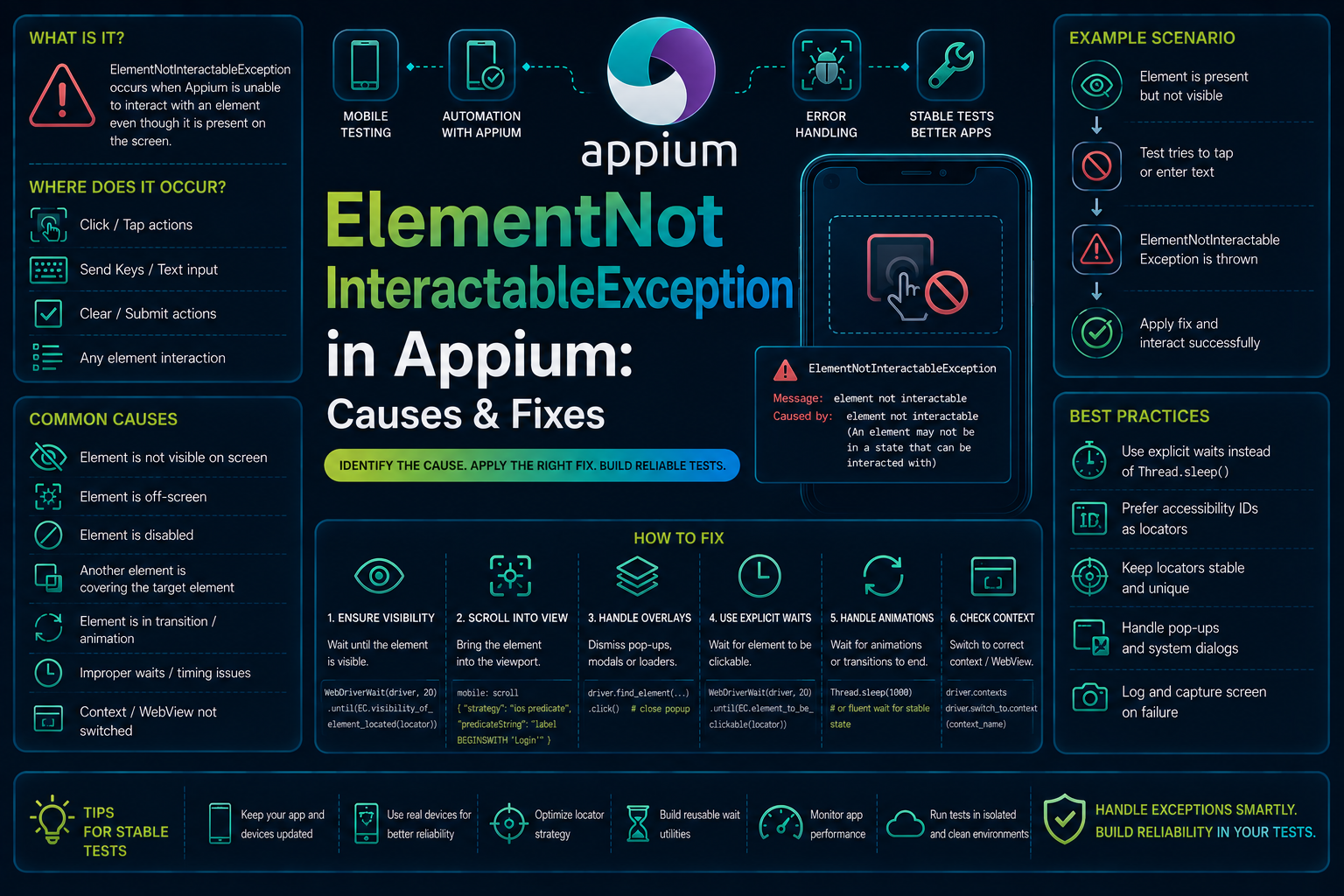

ElementNotInteractableException in Appium is a mobile UI interaction failure.
If you are seeing it while automating Android with UiAutomator2 or iOS with XCUITest, this guide covers the native Appium case, not the browser-specific behavior you may encounter with Selenium WebDriver.
If you need a broader reference for Appium commands, drivers, locators, and gestures, see this Appium cheatsheet.
In practical terms, Appium has found the element, but the element is not in a state where the requested action can be performed.
The problem usually sits at the UI interaction layer: visibility, enabled state, viewport position, accessibility state, timing, or the specific element returned by the locator.
What Is ElementNotInteractableException?
ElementNotInteractableException indicates that an element exists and has been located, but Appium cannot perform the requested interaction on it in its current state.
Selenium defines the exception as a command failure where the element is not pointer- or keyboard-interactable.
In Appium, this typically occurs when a test attempts to click, type into, or otherwise manipulate a native mobile element before the UI has reached the required state.
The failure happens during command execution, after element lookup has succeeded.
That distinction matters because a missing element would normally produce NoSuchElementException, while an element blocked by another UI object can produce ElementClickInterceptedException instead.
The Android and iOS drivers expose different signals for diagnosing the problem.
UiAutomator2 provides attributes such as clickable, enabled, displayed, and bounds, while XCUITest additionally exposes the XCTest-backed hittable attribute.
What Causes ElementNotInteractableException?
The most common causes of ElementNotInteractableException in Appium come down to one issue: Appium can locate the element, but the element is not ready or able to receive the requested interaction. The failure can originate from UI timing, locator accuracy, element state, viewport position, or platform-specific accessibility behavior.
The key distinction is that finding an element does not mean the element is actionable. Check the following causes when diagnosing the exception:
- The element is not ready yet: A button may already exist in the accessibility hierarchy while its
enabledstate is still false, or a text field may be present while the screen is transitioning into the state that allows input. Appium can therefore locate the element before it becomes interactable. - The locator targets the wrong element: An imprecise selector can match a container, label, hidden duplicate, or parent view instead of the actual interactive control. On Android, UiAutomator2 may return a view with
clickable="false"even though a child element is the intended target. - A UI transition or overlay is blocking interaction: Animations, loading indicators, dialogs, keyboards, and temporary system UI can change an element’s interactability between lookup and interaction. UiAutomator2 waits for the accessibility event stream to become idle, but continuous animations or application activity can still introduce timing issues.
- The element is outside the usable viewport: An element can exist in the UI hierarchy without being immediately reachable by the interaction mechanism. This is common with elements inside scrollable containers or below the current viewport, where the test needs to bring the element into an actionable region first.
- iOS considers the element non-hittable: With XCUITest, an element can be visible and enabled but still have
hittableset to false. This indicates that XCTest does not currently consider the element capable of receiving a hit, often because of its position, surrounding UI state, or accessibility configuration.
How To Reproduce The ElementNotInteractableException Error in Appium?
A simple reproduction is an Android test that locates a button while the application has deliberately left that button disabled.
The element is successfully returned by the locator, but the click is attempted before the control becomes enabled.
from appium import webdriver
from appium.options.android import UiAutomator2Options
from appium.webdriver.common.appiumby import AppiumBy

options = UiAutomator2Options()
options.platform_name = "Android"
options.automation_name = "UiAutomator2"
options.device_name = "Android"

driver = webdriver.Remote("http://127.0.0.1:4723", options=options)

button = driver.find_element(
    AppiumBy.ID,
    "com.example:id/continue_button"
)

button.click()
A representative failure may look like this:
selenium.common.exceptions.ElementNotInteractableException:
Message: element not interactable
The exact message and server-side details can vary by Appium client, driver version, platform, and the underlying native automation framework.
How To Fix ElementNotInteractableException in Appium
1. Wait For The Element To Become Interactable
Do not treat element presence as readiness. Wait for the conditions your action actually requires, especially visibility and enabled state.
A custom wait is often clearer than relying only on a generic clickable condition because it lets you inspect the exact state that matters:
from selenium.webdriver.support.ui import WebDriverWait
from appium.webdriver.common.appiumby import AppiumBy

def interactable(driver):
    element = driver.find_element(
        AppiumBy.ID,
        "com.example:id/continue_button"
    )
    return element if element.is_displayed() and element.is_enabled() else False

button = WebDriverWait(driver, 15).until(interactable)
button.click()
This is particularly useful for Android flows where the UI hierarchy appears before the control becomes enabled. On iOS, add hittable to your diagnosis when enabled and visible both look correct.
2. Verify That The Locator Targets The Actual Control
Inspect the hierarchy in Appium Inspector and confirm that the returned element is the element designed to receive the action. Avoid selectors that identify a broad container when the actionable child has its own resource ID, accessibility identifier, or label.
For Android, inspect clickable, enabled, and displayed. UiAutomator2 exposes these attributes directly, making them useful for determining whether the selected node is actually the control you intended.
button = driver.find_element(
    AppiumBy.ACCESSIBILITY_ID,
    "Continue"
)

assert button.is_displayed()
assert button.is_enabled()
button.click()
For iOS, prefer a stable accessibility identifier and inspect hittable when a visible and enabled element still refuses interaction.
button = driver.find_element(
    AppiumBy.ACCESSIBILITY_ID,
    "continueButton"
)

print(button.get_attribute("visible"))
print(button.get_attribute("enabled"))
print(button.get_attribute("hittable"))

button.click()
3. Wait For Transitions And Remove UI Interference
If the element becomes interactable only after a modal, spinner, keyboard, or animation disappears, synchronize against that state instead of adding an arbitrary sleep. Fixed delays may hide the problem on a fast local device while still failing on a slower CI device.
For example, wait for a loading element to disappear before interacting:
from selenium.webdriver.support.ui import WebDriverWait
from selenium.webdriver.support import expected_conditions as EC
from appium.webdriver.common.appiumby import AppiumBy

WebDriverWait(driver, 15).until(
    EC.invisibility_of_element_located(
        (AppiumBy.ID, "com.example:id/loading")
    )
)

driver.find_element(
    AppiumBy.ID,
    "com.example:id/continue_button"
).click()
If a keyboard is covering or changing the interaction state, dismiss it before the next action:
try:
    driver.hide_keyboard()
except Exception:
    pass

driver.find_element(
    AppiumBy.ID,
    "com.example:id/continue_button"
).click()
4. Scroll The Element Into An Actionable Region
A located element may still require scrolling before it can be interacted with. On Android, UiAutomator2 provides mobile gesture commands and supports scrolling through native UI automation mechanisms.
driver.execute_script("mobile: scrollGesture", {
    "left": 0,
    "top": 300,
    "width": 1080,
    "height": 1500,
    "direction": "down",
    "percent": 0.8
})

button = driver.find_element(
    AppiumBy.ACCESSIBILITY_ID,
    "Continue"
)

button.click()
On iOS, XCUITest can perform native scrolling to an element when the destination is inside a scrollable container and meets XCTest’s interaction requirements. Its mobile: scrollToElement command specifically expects the destination to be hittable.
driver.execute_script("mobile: scrollToElement", {
    "elementId": button.id
})
button.click()
5. Diagnose Platform-Specific Interactability
When the same test behaves differently across Android and iOS, inspect the driver-specific attributes instead of assuming the application state is identical.
UiAutomator2 exposes Android accessibility properties such as clickable, enabled, and displayed, while XCUITest exposes enabled, visible, and hittable.
if driver.capabilities["platformName"].lower() == "ios":
    print("hittable:", element.get_attribute("hittable"))
else:
    print("clickable:", element.get_attribute("clickable"))
    print("enabled:", element.get_attribute("enabled"))
This distinction is important when an element appears correct in a screenshot but the automation framework sees a different accessibility or hit-testing state.
How AI Can Help You Fix ElementNotInteractableException Faster
The traditional debugging loop starts after the test fails: inspect the exception, reproduce the flow, open Appium Inspector, compare the screenshot with the hierarchy, inspect element attributes, modify a locator or wait, rerun the test, and repeat.
When the problem is timing-dependent, each iteration can consume several minutes, and a failure late in a long suite also means losing the remaining execution time.
AI-assisted testing can add a pre-execution layer by inspecting the interaction code against the expected UI state.
For this error, that means identifying patterns such as clicking immediately after locating an element, targeting a container instead of an actionable child, or relying on a locator without accounting for enabled, visible, or platform-specific hit-test state.
Appium tells you that the interaction failed when the driver executes the command. A code review layer can flag interaction patterns that are likely to target a non-interactable element, before the test reaches the device.
For teams exploring AI-assisted Appium workflows, the Appium MCP guide explains how AI agents can work with Appium-based mobile testing.
That is where Panto AI fits.
Panto AI’s AI-powered mobile app testing helps teams automate mobile QA workflows while identifying interaction and UI issues earlier.
The value is not in replacing Appium. The value is in catching non-interactable element patterns before they become failed test runs, repeated local debugging, and unstable CI results.
Best Practices To Prevent ElementNotInteractableException in Appium
Preventing ElementNotInteractableException is less about adding waits everywhere and more about making the application’s UI state predictable and its interactive elements easy for Appium to identify.
Good accessibility metadata, deterministic test data, and consistent environments reduce the conditions that make an element appear in the hierarchy without being actionable.
The following practices help prevent interactability failures across Android and iOS:
- Use Stable Accessibility Identifiers: Give actionable controls stable resource IDs or accessibility identifiers instead of relying on fragile hierarchy-based selectors. This reduces the chance that Appium resolves a visually related but non-interactable node.
- Model UI State Explicitly: Represent states such as loading, disabled, enabled, and submitted in the application’s test model. The same element can exist in the hierarchy while accepting input only in a specific state.
- Keep Interactive Targets Accessible: Ensure buttons, fields, and other controls expose the accessibility properties expected by the automation driver. This is particularly important on iOS, where XCTest’s
hittablestate determines whether an element can currently receive a hit. - Keep Test Data Deterministic: Avoid test data that conditionally disables controls or changes the screen structure unless that behavior is part of the test scenario. Deterministic state makes interactability failures easier to reproduce and diagnose.
- Capture UI State On Failure: Store the screenshot, page source, platform, OS version, driver version, and relevant element attributes when an interaction fails. Comparing these artifacts can reveal whether the issue came from element state, hierarchy, viewport position, or the device environment.
- Align Local And CI Devices: Keep device dimensions, OS versions, permissions, animation settings, and application builds consistent between local and CI environments. Differences in device configuration can change how the native UI is exposed to Appium.
Handling ElementNotInteractableException In CI/CD Pipelines
CI makes this exception more visible because execution commonly happens on cold devices, emulators, simulators, or real-device farms with different performance characteristics.
Application startup, animations, permission dialogs, keyboard behavior, screen dimensions, and network-dependent UI states can all differ from a developer’s local run.
The first step is to separate an application-state failure from an environment-readiness failure.
Before running the suite, verify that the expected device is connected and that the required Appium driver is installed.
For Android, UiAutomator2 is the native driver used for Android automation; XCUITest is the corresponding official driver for iOS.
set -e

echo "Checking Android device..."
adb get-state | grep -q "^device$"

echo "Checking Appium UiAutomator2 driver..."
appium driver list --installed | grep -qi "uiautomator2"

echo "Device and Appium driver are ready."
For iOS pipelines, add equivalent simulator or real-device readiness checks and confirm that the XCUITest driver and required Xcode tooling are available before starting the suite.
Environment validation will not fix an application-level interactability defect, but it prevents infrastructure timing problems from being mistaken for UI defects.
Conclusion
ElementNotInteractableException is an interaction-state failure.
Appium has located the element, but the native automation layer cannot perform the requested action because the element is not currently actionable, visible, enabled, reachable, or hittable.
The fastest debugging sequence is to inspect the exact element returned by the locator, check its platform-specific state, verify that the UI has finished transitioning, confirm that the element is in an actionable viewport.
Then compare Android UiAutomator2 behavior with iOS XCUITest behavior where necessary.
For teams running large mobile suites, the goal is not only to repair one failed click or text entry.
The longer-term goal is to remove the recurring patterns that produce non-interactable elements so the same class of defect does not repeatedly consume developer time in local runs and CI.
FAQs
Q: Why does Appium throw ElementNotInteractableException even though the element is visible?
A: Visibility does not always mean an element is interactable. The element may be disabled, outside the actionable viewport, covered by another UI element, or not considered hittable by the underlying driver. On iOS, checking the XCUITest hittable attribute can help determine whether a visible element is actually available for interaction.
Q: Why does ElementNotInteractableException happen in CI but not locally?
A: CI environments can differ from local machines in device performance, screen dimensions, startup timing, permissions, animations, and application state. These differences can expose timing-sensitive interactions where Appium attempts to interact with an element before it has become fully actionable.
Q: What is the difference between ElementNotInteractableException and ElementClickInterceptedException?
A: ElementNotInteractableException means the target element exists but cannot currently perform the requested interaction. ElementClickInterceptedException means another element is positioned over the target and would receive the interaction instead. The first usually points to the target’s state or availability, while the second points to an obstruction.
Q: How do I check whether an Appium element is actually interactable?
A: Start by checking is_displayed() and is_enabled(), then inspect platform-specific attributes. UiAutomator2 exposes properties such as clickable, enabled, and displayed, while XCUITest also provides the hittable attribute. These checks help distinguish a visible element from one that Appium can actually interact with.